
How to DFU/IPSW Restore an iOS/iPadOS device to a specific OS version
In this guide, Bryce walks through how to use Device Firmware Updates (DFU) and IPSW restores to put any compatible iOS or iPadOS device on a specific, signed OS build so you can accelerate testing, reduce risk, and ship with confidence.
It is commonly thought that once an iOS or iPadOS device is updated it can not be used to test that same update again. That is not always the case. Apple publishes the full OS install file for iOS and iPadOS on their CDN. These OS installers (known as .IPSW files) are used by macOS Finder.app for device restore as well as by Apple Configurator 2 for mass wired upgrades, restore, and wipe actions. These IPSWs are code signed by Apple and valid for windows of time after GA release where these applications macOS side can use them for their intended purpose of putting the iOS or iPadOS device on specifically that OS build and version that you selected.
When testing OS updates this can be hugely helpful as you could test an update from say iOS 17.7.0 to iOS 18.1 and then wipe via DFU/restore over USB from a macOS device to bring that same iOS or iPadOS device back to iOS 17.7.0 so you can test the same workflow again. This works for minor versions as well (EX: iOS 18.0.1 to 18.1 and back to 18.0.1) as long as the IPSW files are code signed.
The IPSW files are hosted by Apple, but a few sites online index and organize those Apple CDN links. The one that I use commonly is ipsw.me. The site is supported by ads, and there is a large amount of them on the page so a good ad blocker might be in order to clean up the UI. The site is organized by Apple product then the device within that product line.
Notes before you proceed:
- This will wipe the Apple device clean and all local data on device will be wiped
- Activation Lock should be disabled before doing this
- Find My Device consumer iCloud features will also need to be disabled
- The process takes ~15-20 mins. depending on broadband speeds and device age
Apple platform picker
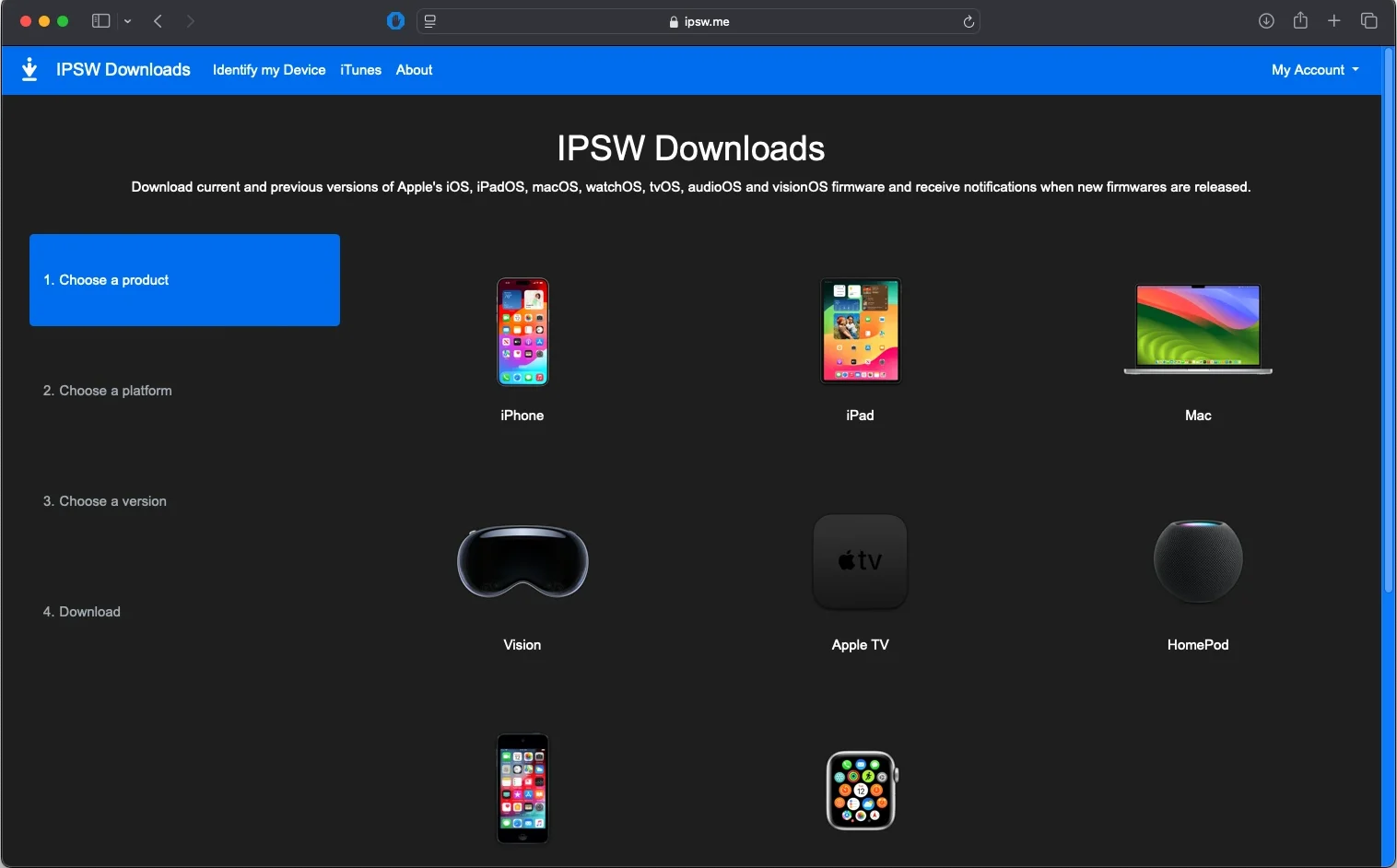
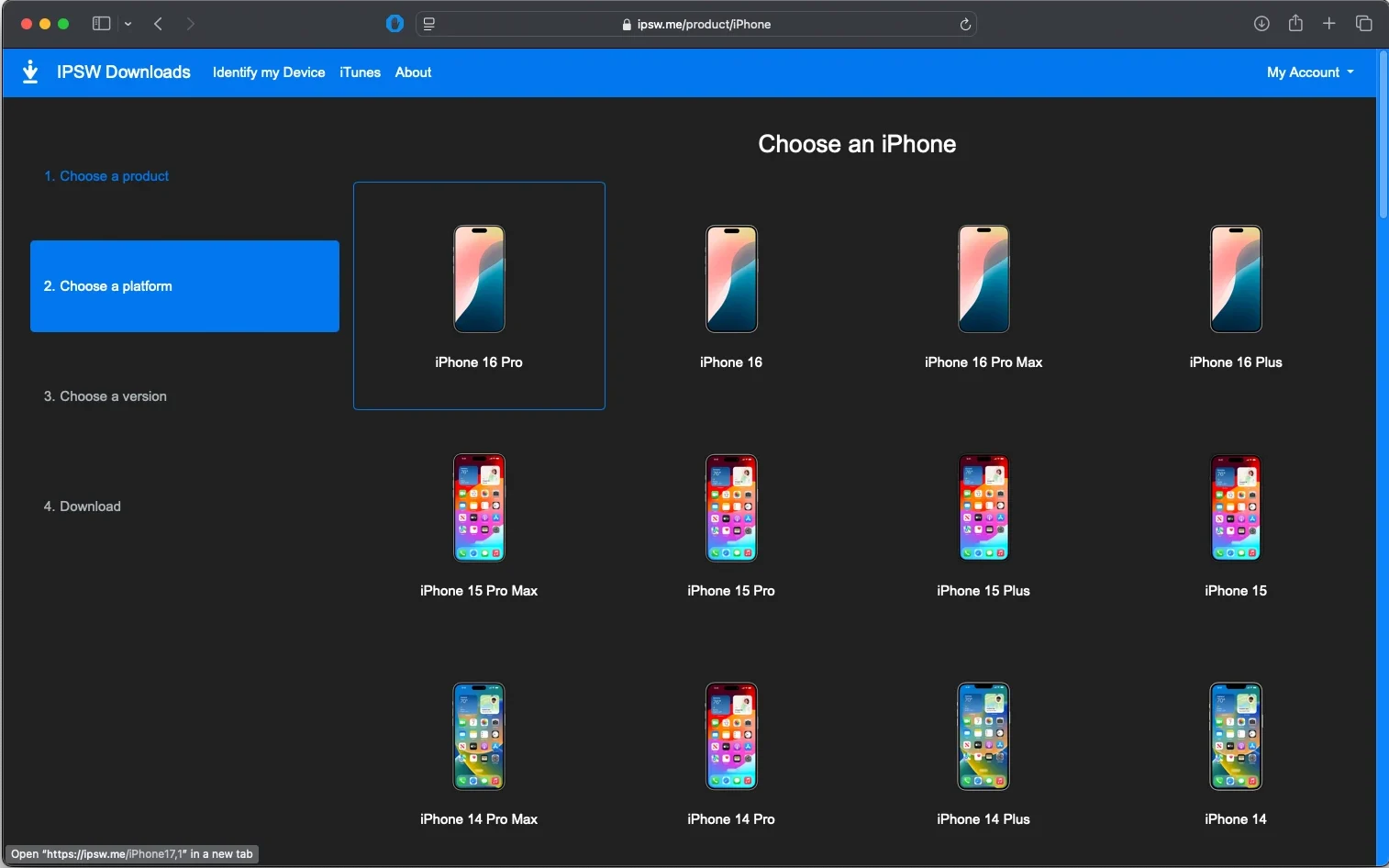
Device model picker in iOS product line
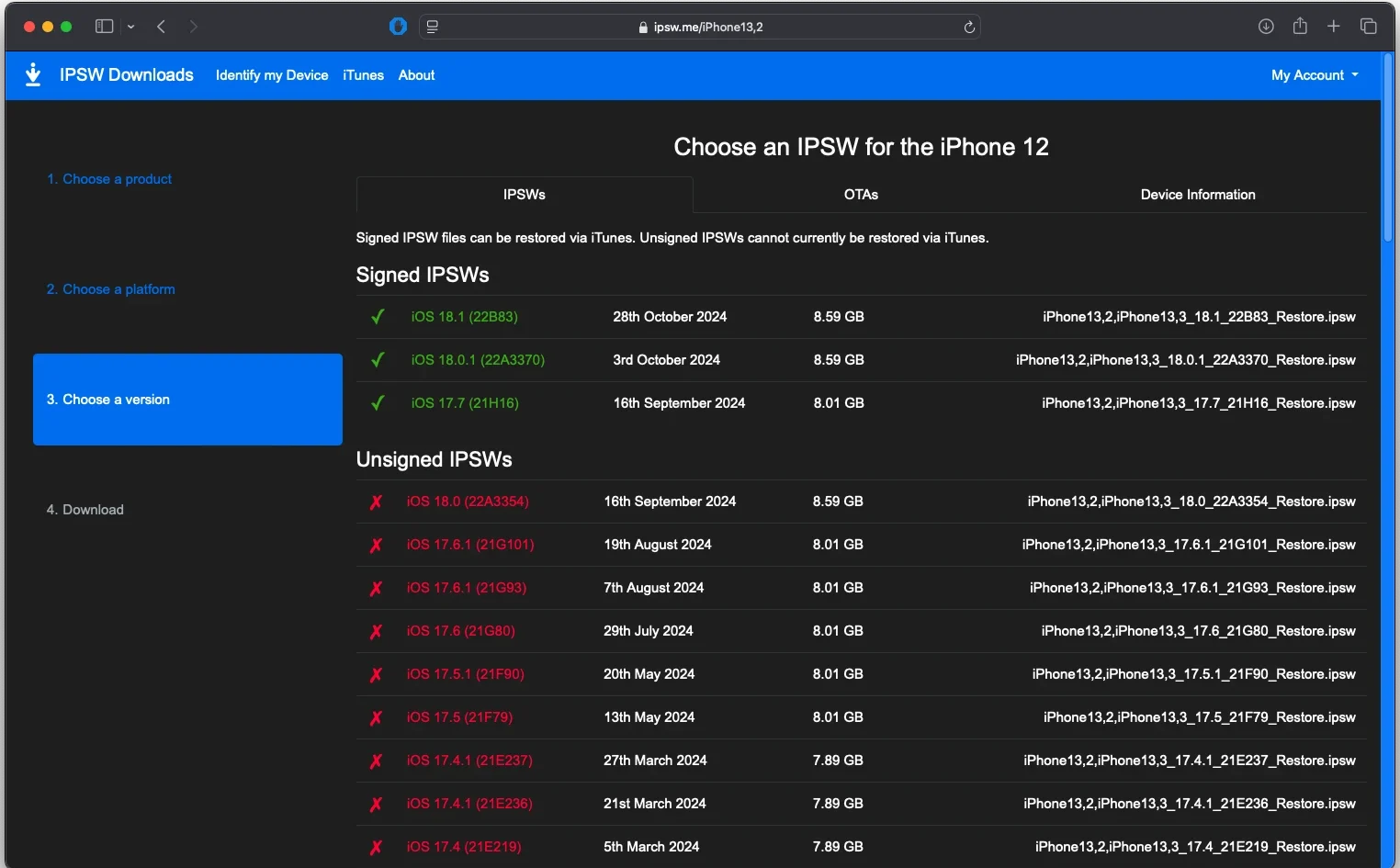
Once you have picked a device you will see a listing of the OS versions that have published IPSW files on Apple’s CDN along with their release date. ipsw.me also sorts them by if the OS is signed and restorable or not. If the version you are looking to restore is green then you are good to go for a restore.
Listing of IPSWs for restore
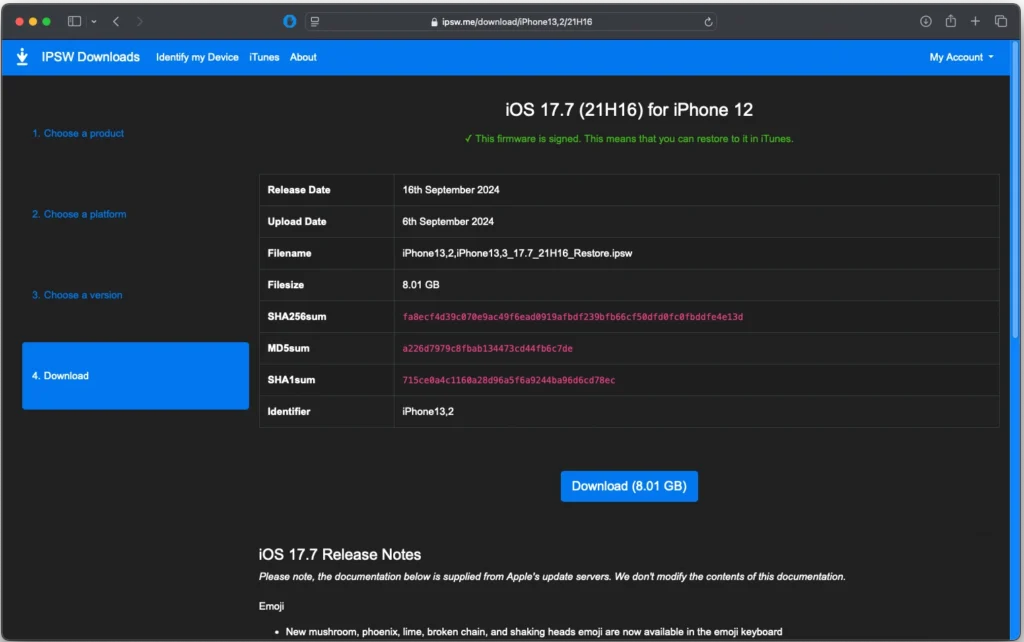
Once you pick the version you can download that IPSW to use for a pointed/selective restore to that OS version for your Apple device.
Selected iOS version for download
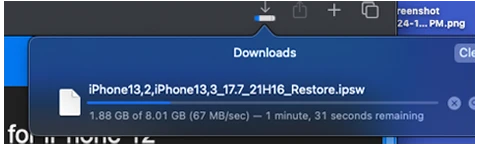
IPSW file being downloaded
With the iOS (or iPadOS) device in question plugged in via USB to a macOS device you can now do a restore to that OS version. If the device is NOT responsive or will not power on correctly you could try a DFU boot), otherwise just plug the device in with it unlocked and at the Home Screen, it should appear in Finder.app on your macOS device like shown here.
iPhone plugged into macOS device via USB and showing in Finder.app
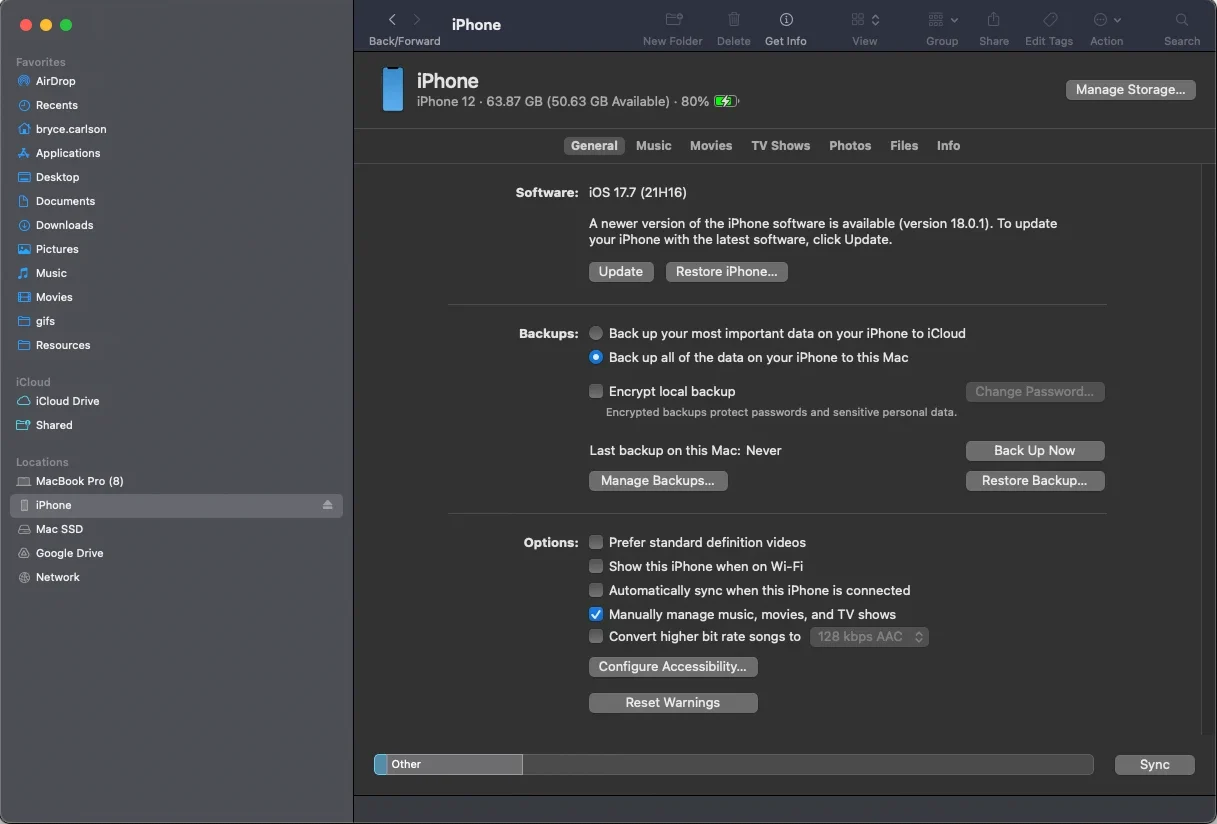
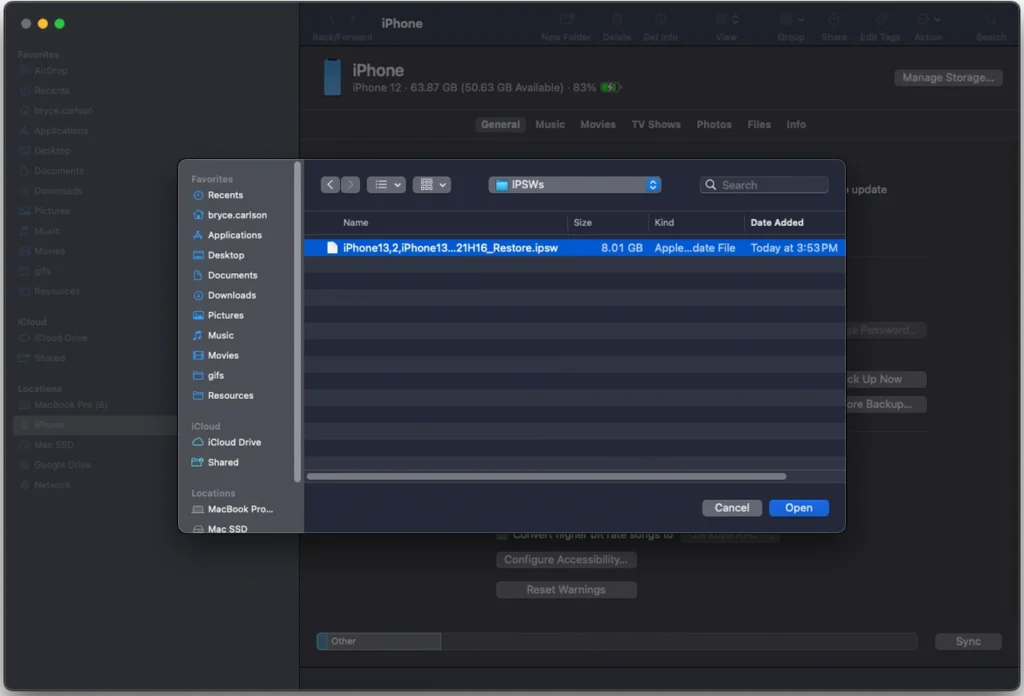
With the device showing in Finder.app and your desired IPSW file downloaded locally to your macOS device you can start the restore. In Finder.app you will notice that it shows what version the device is on now, and if an update is available (if a newer OS exists GA/Public). We are not going to pick that default option, we are going to instead hold down the option key on the keyboard and then click the Restore iPhone… (or iPad etc.) button with the option key still depressed. This will allow us to pick the IPSW file for our specific version of iOS/iPadOS from our restore host macOS device’s file structure.
Select the desired IPSW file

Finder.app will ask for confirmation of the restore
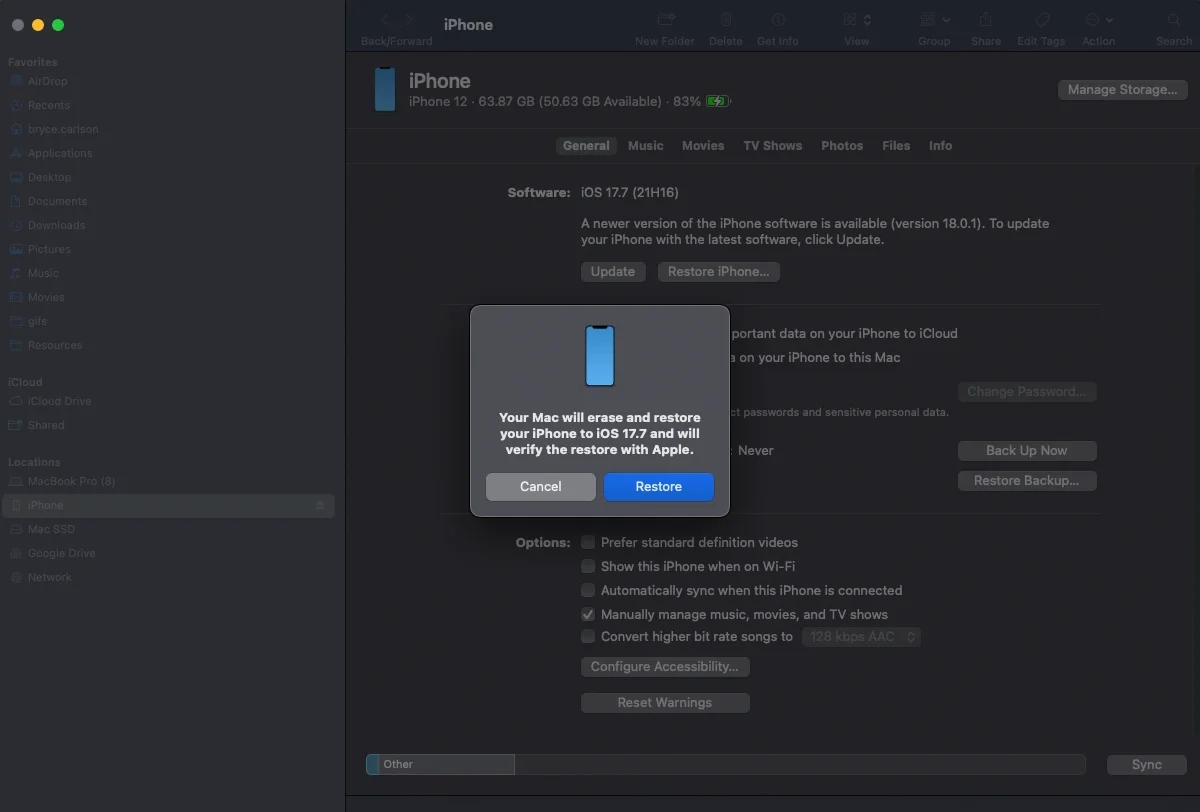
NOTE: This will wipe the device clean. This is a full reset and wipe not just a downgrade or restore point.
Restore in progress
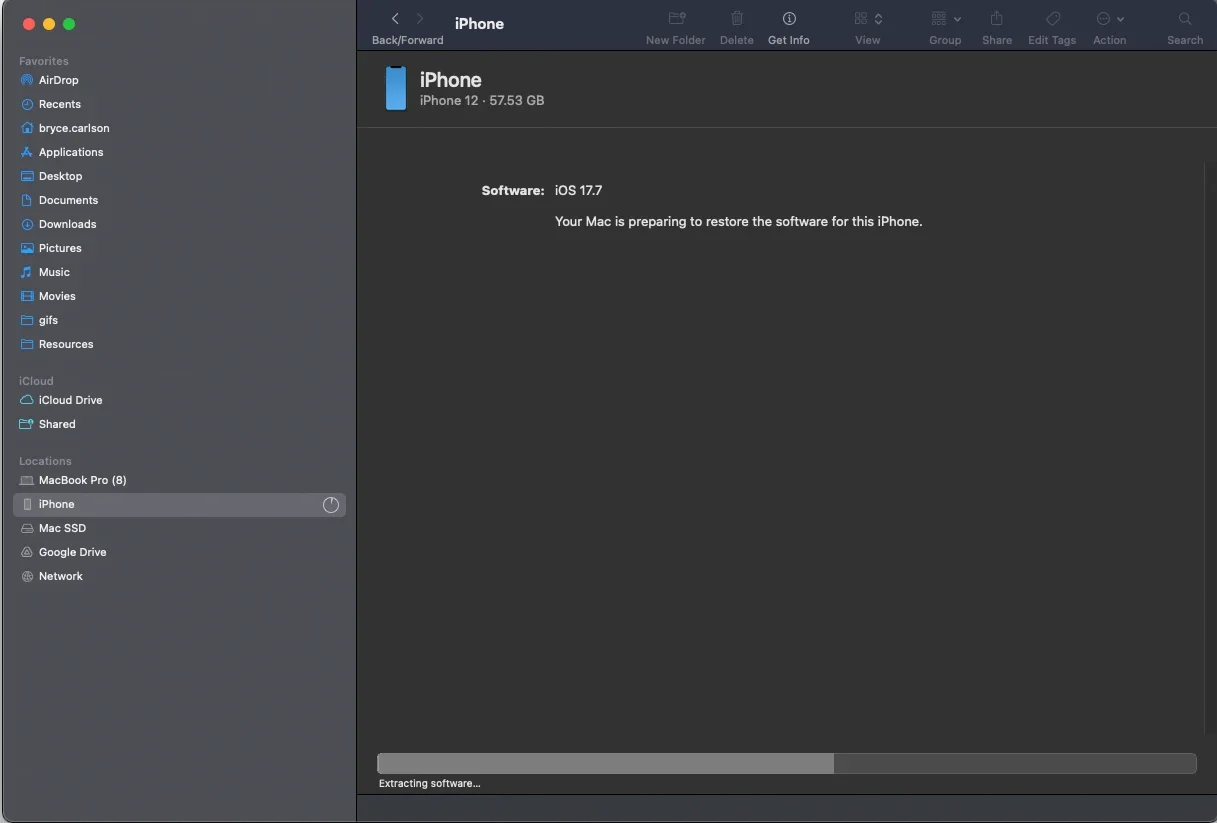
Finder.app will restore the device and you will be good to go to use the older OS version after it reboots a few times and is restored to Setup Assistant.
The Final Word on iOS & iPadOS
Being able to move a device from iOS 17.7.0 up to 18.1 and back again on demand turns a one-time upgrade into a repeatable, controlled test scenario. With DFU/IPSW restores, your team can confidently reproduce bugs, validate fixes, and standardize regression testing across iOS and iPadOS fleets.
To keep your testing fast and consistent:
- Use this workflow as the standard operating procedure for pre-production OS validation.
- Turn the steps above into an internal checklist or runbook and share it with your teammates.
- Have feedback or edge cases you are seeing in your environment? Reach out so this guide can evolve with your needs.
Good luck with your testing!