Apple MDM Starter Kit: Your First 30 Days to Zero‑Touch
New hires are asking for Macs, executives travel with iPads, and iPhones are everywhere — and if you’re still managing them manually, you’re already behind.
According to a Forrester study commissioned by Apple, organizations that make the switch to structured Apple device management see a 186% ROI and cut total device support costs by nearly a third. The tools and the ROI case are there. What most IT teams are missing is a sequence.
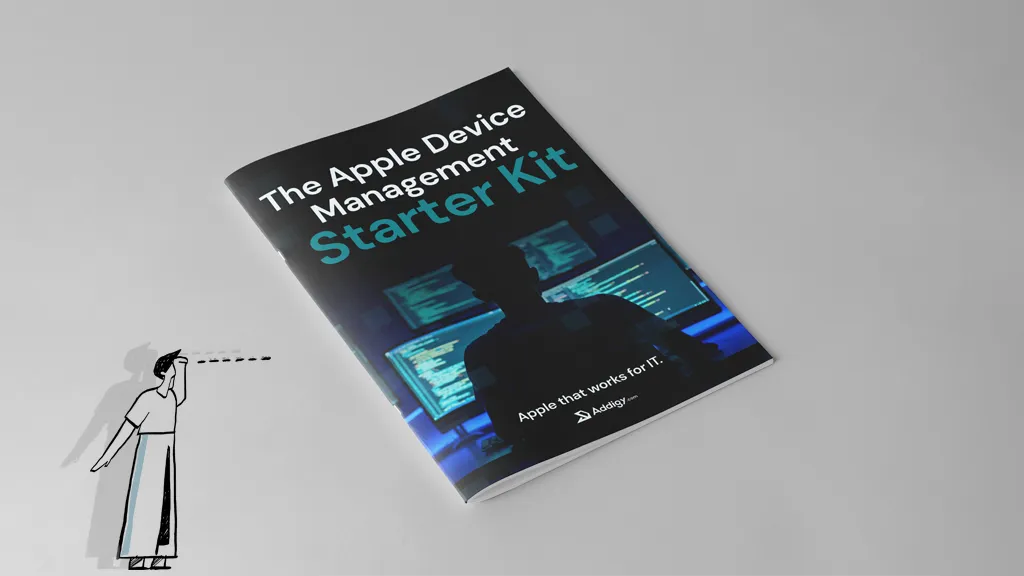
That’s what this guide is. Our Apple MDM Starter Kit gives you a practical, 30‑day roadmap to go from ad‑hoc Apple support to zero‑touch deployment, baseline compliance, and happier users — without needing to be a Mac expert first.
Why IT Teams Can’t Wing Apple Device Management
When you’re only supporting a handful of Macs, it’s tempting to treat them as one-off exceptions: image them manually, adjust settings on the fly, and hope for the best.
But that thinking doesn’t survive when confronted with:
- Double‑digit Mac and iPad growth
- Remote and hybrid employees
- Security and compliance expectations from leadership
Without a proper Apple-first MDM setup, your onboarding process drags, security is inconsistent, and audits are painful.
Modern Apple management hinges on three pillars:
- Apple Business Manager (ABM): Apple’s free portal for assigning devices and apps to your org.
- Mobile Device Management (MDM): The platform (like Addigy) that configures, secures, and monitors devices.
- Automated Device Enrollment (ADE): The bridge between ABM and MDM that enables true zero‑touch setup.
Your goal over the next 30 days is to get all three working together—and make it repeatable.
Your First 30 Days: High‑Level Apple Device Management Plan
Week 1: Get Apple Business Manager in Place
Your first job is to get Apple recognizing your organization so devices can be assigned and automated.
Focus on:
- Creating and verifying ABM
- Set up your ABM account with a shared, non‑personal admin address.
- Complete Apple’s verification process using your org’s D‑U‑N‑S number and exec contact.
- Connecting resellers and capturing new devices
- Link your Apple/reseller IDs so new purchases automatically appear in ABM.
- Standardize purchasing so all future Apple devices go through these channels.
- Planning for existing devices
- Decide which legacy devices get pulled into ABM via Apple Configurator and which will be replaced over time.
- For remote staff, plan either coached Configurator sessions or device refresh.
By the end of Week 1, you should have ABM verified and a clear list of which devices are ABM‑eligible now and in the near future.
Week 2: Connect Your MDM and Enable Zero‑Touch
With ABM ready, your next step is to choose or confirm your MDM and wire everything together.
As an IT manager, look for:
- Tight integration with ABM and ADE
- Strong Apple‑specific support and documentation
- Real‑time visibility (not just periodic check‑ins)
- Built‑in compliance and automation
Then:
- Connect ABM to your MDM
- Exchange and upload the necessary server tokens or certificates.
- Confirm that devices from ABM are visible in your MDM console.
- Set up enrollment and ADE profiles
- Create global and/or department‑specific enrollment profiles.
- Turn on Automated Device Enrollment so new devices auto‑enroll out of the box.
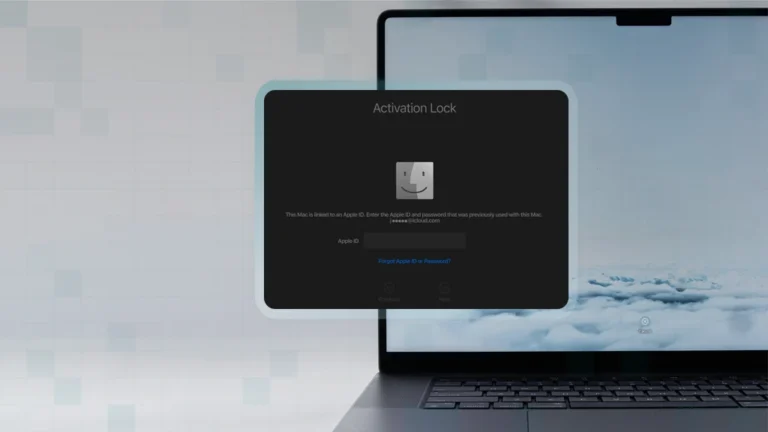
- Configure defaults like mandatory enrollment, locked profile removal, and Activation Lock where appropriate.
By the end of Week 2, a brand‑new device should be able to enroll itself into management as soon as it’s turned on and connected to Wi‑Fi.
Week 3: Baseline Security & Compliance
Once enrollment is under control, you need to make sure every device that enrolls is secure and auditable from day one.
Start small but meaningful:
- Use prebuilt benchmarks instead of starting from zero
- Leverage built‑in CIS/NIST‑style templates where your MDM provides them.
- Clone and adjust for your specific policies and risk appetite.
- Turn on a focused set of rules
- Full‑disk encryption (e.g., FileVault on macOS).
- Password/passcode complexity and auto‑lock timeouts.
- OS and app update baselines.
- Core Wi‑Fi and VPN profiles.
- Enable monitoring, alerts, and basic remediation
- Configure alerts for major drift: encryption off, OS significantly out of date, missing critical apps.
- Where supported, turn on auto‑remediation so compliant settings are re‑applied without manual intervention.
- Confirm you can export a simple compliance report for leadership or auditors.
The outcome of Week 3: any newly enrolled device automatically lands in a secure, compliant state, and you have basic reporting in place.
Week 4: Apps, Experience, and a Full Test Run
Now that onboarding and security are handled, turn to productivity and user experience.
Focus on:
- Core app deployment by role or department
- Build base app sets (All Staff, Sales, Finance, Engineering, etc.).
- Use your MDM’s prebuilt catalog where available to cut packaging time.
- Self‑Service for optional tools
- Enable a Self‑Service or company app store for IT‑approved extras.
- Reduce tickets by letting users help themselves within guardrails.
- Run a full end‑to‑end test
- Pick a test device: wipe or assign it fresh in ABM.
- Power it on like a new hire would.
- Confirm:
- ADE prompts appear and can’t be skipped.
- The device enrolls into your MDM.
- Security and compliance policies apply correctly.
- Required apps install and optional apps appear in Self‑Service.
- Document this flow as your “Apple onboarding runbook.”
By the end of Week 4, you’ll have a repeatable, largely hands‑off process to go from purchase to productive, compliant device in under an hour of calendar time—with almost no IT effort per device.
Where the MDM Starter Kit (and Addigy) Help
You don’t have to remember all of this or piece it together from scattered docs. The MDM Starter Kit:
- Walks you through ABM setup, device enrollment, and ADE with screenshots.
- Provides a readiness checklist so you don’t miss critical steps.
- Shows you how to use built‑in compliance templates instead of writing policies from scratch.
- Breaks down app deployment and Self‑Service in practical, department‑friendly terms.
Because it’s written from the perspective of a modern, Apple‑focused MDM like Addigy, you also see what real‑time visibility and remediation look like in practice—so you’re not just compliant on paper, but actively in control when something breaks.
Ready to Turn Chaos into a Playbook?
You don’t need another vague Apple strategy doc. You need a concrete sequence:
- Stand up ABM correctly.
- Connect your MDM and turn on zero‑touch.
- Apply sane, proven security baselines.
- Deploy apps and test the full journey like a user.
That’s exactly what the MDM Starter Kit gives you.
Use it to ship your first zero‑touch Macs with confidence—and to prove to leadership (or clients) that your Apple fleet is secure, scalable, and under control.
Download the Starter Kit and ship your first zero-touch Mac this week.